How to Translate a PDF and Keep Its Layout
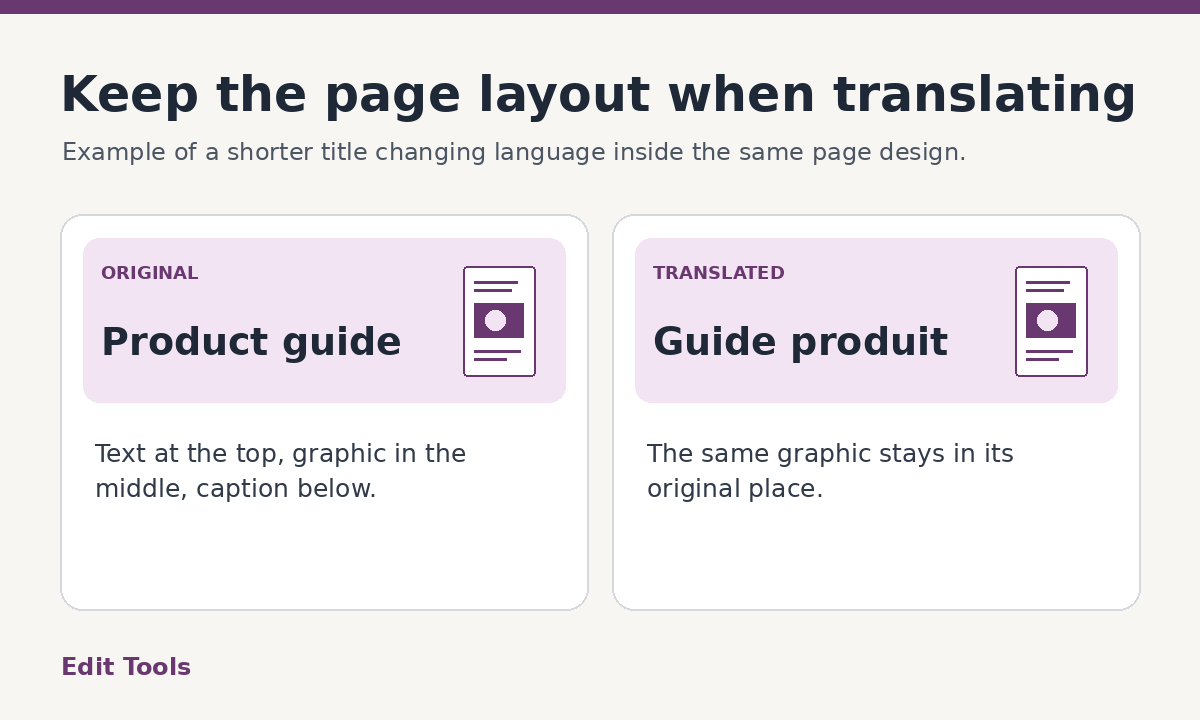
Start by checking whether the text you want to translate is selectable. If it is, open Translate PDF, choose the source and target languages, then download a new PDF and compare it with the original. Edit Tools keeps the visible page size, page count and graphics, and fits translated text into the available space. Its translated pages are flattened, so the new wording is visible but cannot be selected like ordinary PDF text.
What does keeping the layout actually mean?
A PDF is built to display a fixed page. It can place a sentence in a small box, put two columns beside a photograph or line up prices inside a table. Each of those choices constrains the space available for translation. A sentence that fits on one line in the source language might need more room in the target language.
For layout preservation, it helps to name what matters to you. Keeping the image positions and the page dimensions is different from keeping the exact font, text size and internal links. A readable translation that resembles a brochure can be successful even if a few lines use a smaller font. A publication-ready version with identical typography and working links usually needs an editable source and manual layout adjustments.
The Edit Tools exporter retains the overall page appearance and places translations where the source text appeared. Longer lines may be scaled to fit. Review dense tables, short labels and narrow columns closely, because those areas offer the least room for longer wording.
Step 1. Check for selectable text
Open the PDF in a viewer and try to highlight individual words. Copy a line from a heading and a line from the body, then paste both into a plain text editor. If they appear as expected, those parts of the PDF are a good candidate for text translation. Test more than one page if the file combines a digital cover with scanned attachments.
Visible writing inside a photograph, screenshot, scanned page or outlined graphic is usually part of the image. The current layout-preserving translator does not replace those words. A scanned page may even have a hidden OCR layer while the visible words are still baked into the image. The translated copy may leave that page as it was. If you need image text translated in place, find the editable source or use an OCR-and-rebuild workflow that can replace text in images.
Step 2. Choose a supported browser and language pair
Use a supported desktop browser and open Translate PDF. Choose the document and set its actual source language. Select your target language from the dropdown. If the document mixes languages, consider separating the main sections by source language first. A single source setting is easier to validate when each section uses one language consistently.
The tool uses the browser's on-device translation capability. The browser may need to download a language model before it can process the file. Availability depends on the browser, device and language pair. If you see a model error, check the browser version, network connection and supported language choices. Trying a short, ordinary text PDF can help tell the difference between a model problem and a problem with one document.
Start the translation and wait for the download link. Save the result with the target language in its filename, for example product-guide-fr.pdf. Open both documents and compare the same pages side by side or in separate tabs.
Step 3. Review the pages that are easiest to break
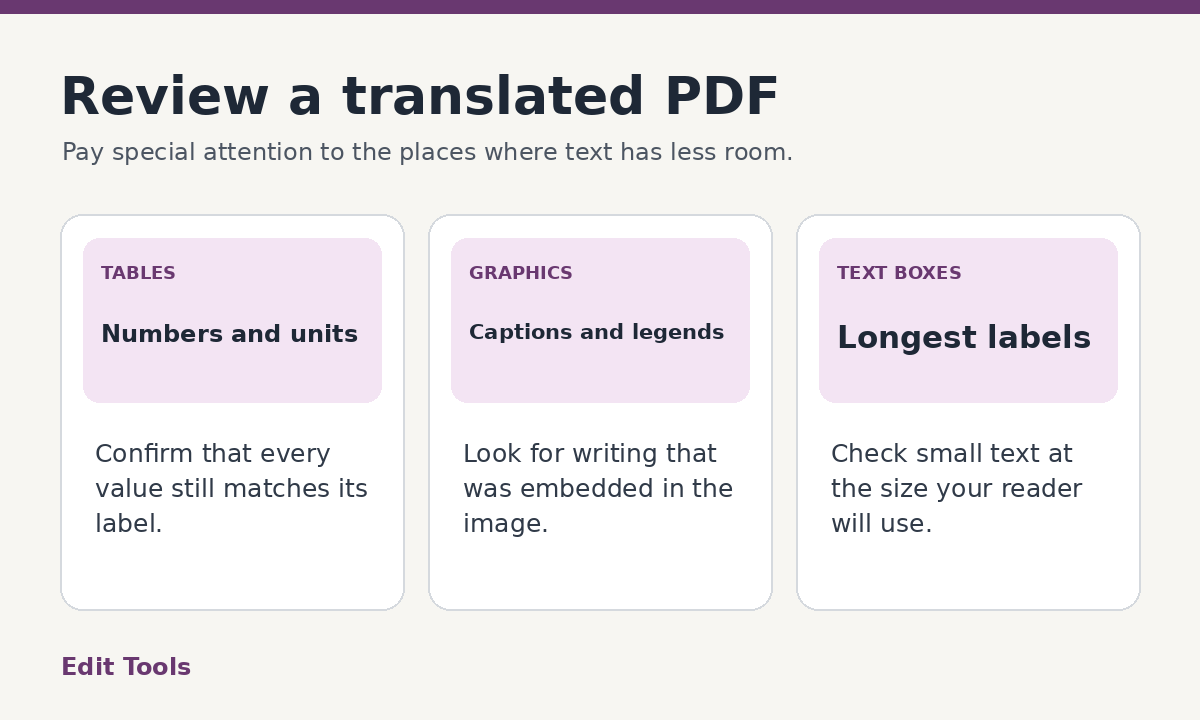
Look first at the longest labels, widest tables, narrowest columns and smallest captions. These are the places where preserving the bounding space can make the text visibly smaller. Inspect at the magnification the reader will actually use. For a document that will be printed, check a print preview and look at the densest page at its intended size.
Read the translated headings and important sentences in context. Technical terms can be accurate in one product and wrong in another. Names, references, units and decimal separators need their own check. If a table gives a range or a negative number, verify both its value and the label next to it. Pay attention to reading order when the source has adjacent columns or captions underneath images.
Check the graphics too. A chart legend might stay in the source language if it is baked into an image. A picture of a label keeps its original writing. If that makes a page difficult to understand, you can add a translated caption in a separate editable version or replace the graphic using the original design file.
Example. A four-page product brochure
Suppose a brochure contains a headline next to a product photo, two columns of feature descriptions and a specification chart. The main text is selectable, but the chart was placed as a single image. After translating, you can expect the main wording to move into the target language while the photo and chart stay in place. Some lines may use a smaller size to stay inside their original space.
Before sending the brochure, compare the page count and look at the spec chart in the new copy. If its labels still use the source language, decide whether a separate translated explanation works for the recipient. For a customer-facing publication, go back to the design file and translate the chart labels directly if you need a consistent result across the whole brochure.
When to use the original design file
If the recipient needs searchable translated text, active form fields or accessible document structure, work from an editable source when possible. Translate the text inside that source, adjust boxes and reading order, then export a new PDF. The source file also makes it easier to update translations without changing the surrounding art.
For a reference copy meant to be read on screen, a flattened translation may be sufficient. Keep the original for links, annotations and any interaction the exported copy no longer supports. Store a separate text translation if you need to search or reuse the wording later.
Can I preserve the exact font and size?
Sometimes the words fit in the available space, but the same type size cannot be guaranteed across languages. A font may also lack characters needed for the target script. Leave time to review the longest translations and use manual layout when the appearance must meet a formal design specification.
The simplest test is a short sample with a dense page, an ordinary text page and a page with graphics. Check all three before translating a long report. That gives you a practical basis for choosing between an automated reference copy and a manually typeset translation.
Further reading: Chrome's documentation on built-in translation and model availability.