How to Make a Scanned PDF Searchable With OCR
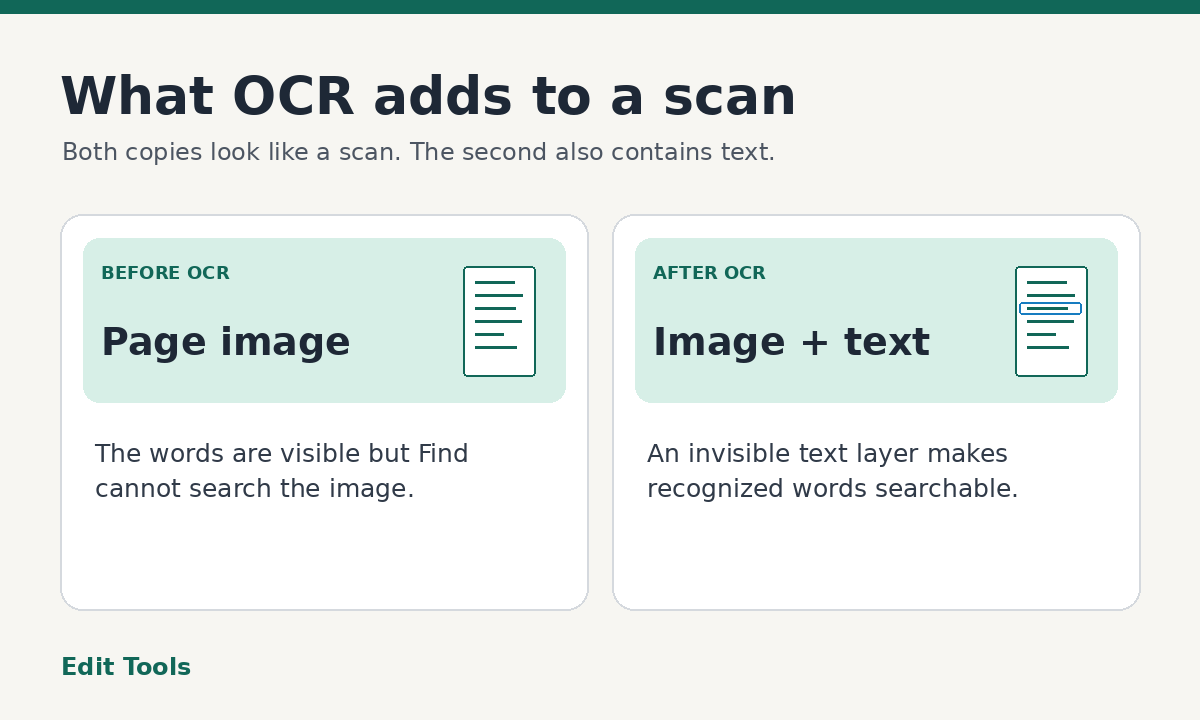
Open the scanned PDF and try to select a word or find a short phrase you can see clearly. If the words behave like part of a picture, use optical character recognition, usually called OCR. OCR reads the letters in a page image and adds text that your PDF reader can search and select. Keep the original scan, then check the new copy with several known words before relying on it.
Why you can see the words but can't find them
When a paper page is scanned, the result can be stored as one image. A PDF viewer can display every letter in that image, but its Find feature searches text, not the shapes within the image. A digital document exported directly from a word processor usually already contains text. Its letters can be selected one by one even if the pages look much like a scan.
Some files contain both kinds of page. For example, a digitally created cover letter may be followed by a scanned receipt and a scanned form. Finding a word on the cover tells you very little about the other pages. Run the selection test on at least one page of each kind before deciding how to process the file.
If you can select words but search still seems inconsistent, copy a short line into a plain text editor. An existing text layer may be incomplete, contain bad character mappings, or break a word across a line. That is a different diagnosis from a PDF with no text at all.
Prepare the scan before recognizing text
OCR can only work with the shapes it sees. Rotate sideways pages, straighten obviously tilted scans and keep enough margin for the outer letters. If a page is blurry, rescan it when you can. Sharpening a low-detail picture cannot recover letters that were never captured. Good lighting and a flat page help when you are taking photos instead of using a scanner.
Avoid aggressively compressing an image first. Heavy compression can add blocky edges and remove details around punctuation. A clearly readable copy gives the recognition engine a stronger starting point. If the scanner is producing oversized files, test a short batch with a document preset and inspect small print before scanning the whole collection.
Use a tool that supports the language in the document. OCR PDF on Edit Tools currently uses an English recognition model. For a document mainly in another language, pick an OCR program with the appropriate language pack. For mixed-language pages, check whether the tool can recognize the needed languages together.
Run OCR PDF and verify the new copy
Open OCR PDF, choose the scanned document and start recognition. The tool processes the images page by page. Larger files can take longer, so try a short section first if you have hundreds of pages to handle or a device with limited memory. After processing, download the copy and open it separately from the original.
The Edit Tools output contains rendered page images and an invisible recognized-text layer. You should still see the scan while gaining a way to search it. This approach does not rebuild the source into editable paragraphs, and original interactive features may be lost. Store both files when the original also needs to be used as a form or reviewed in its original digital structure.
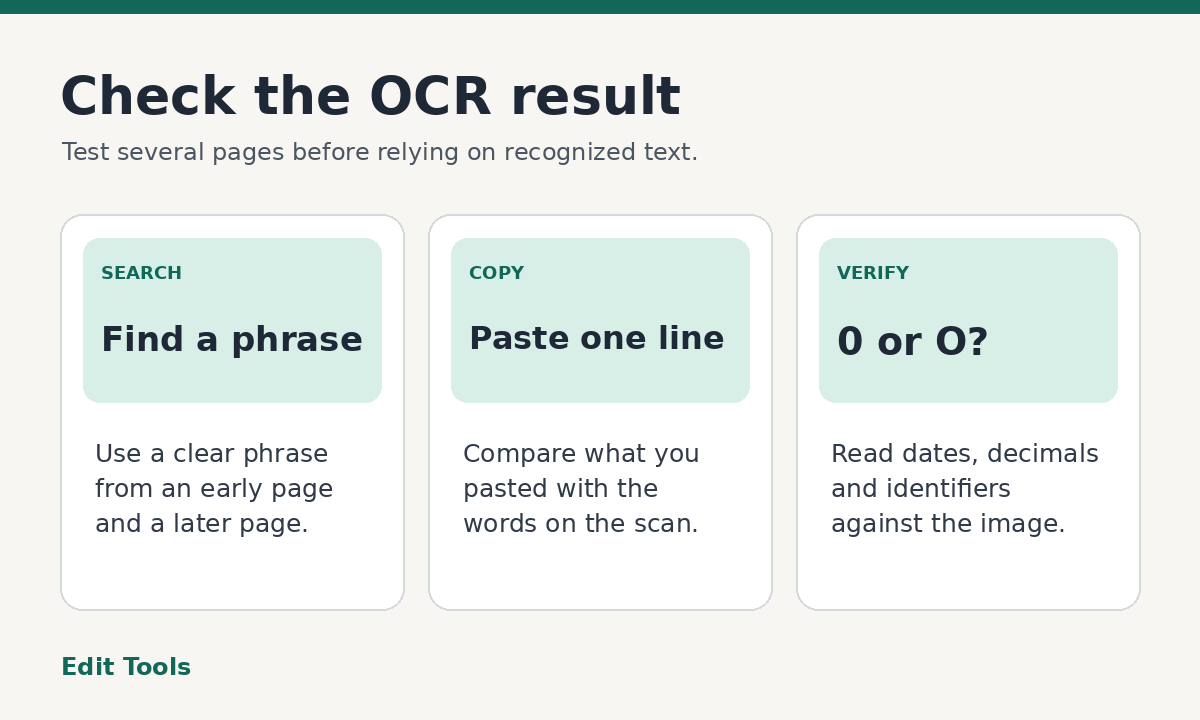
Search for a clear phrase on an early page and another on a later page. Try the viewer's normal Find command, then copy a line from a middle page into a text editor. Compare the result with the picture. If a full phrase does not match, search for one word without punctuation. This can help distinguish missing text from differences in spaces or line breaks.
Check the details OCR often gets wrong
Letters and numbers with similar shapes are easy to confuse. A zero can become the letter O. A lowercase l can become a one. Small decimal points, accents and faint punctuation can disappear. Check any identifier, total or date you will copy elsewhere by looking at the visible page as well as the recognized text.
Tables and multiple columns deserve extra care. A viewer may select text out of the order you expect when it crosses a column boundary. A copied table may come out as a series of words even though the numbers are visible in their original cells. For data entry, use the scan to confirm which number belongs to which row and column.
Handwritten notes, stamps across printed text, dark backgrounds and low-contrast receipts can reduce recognition quality. If OCR misses an important detail and a better scan is unavailable, use the page image for that detail. Adding a searchable layer can make a document easier to find without making every line a reliable transcription.
Searchable, editable and accessible mean different things
A searchable PDF is helpful when you need to locate a name, date or phrase. An editable document is useful when you need to change paragraphs, rebuild a table or update a form. OCR can help with both goals, but the output you want is different. For substantial edits, use an editable source file if it is available or export the recognized text and rebuild the document carefully.
A hidden text layer can improve access to a scan, but it does not automatically provide a logical reading order, meaningful headings, suitable alternative text or correct table structure. If the PDF is being published as an accessible document, check its reading order and structure separately. Starting from an accessible digital original is often easier than repairing a scan.
What if search still finds nothing?
First make sure you opened the downloaded OCR output. Files with similar names are easy to confuse when several versions are open. Test the output in a second PDF viewer if copying or searching fails in the first. Then check the source image and language. A sharp test page in English can help show whether the difficulty comes from the file or the workflow.
For a mixed packet with only a few scanned pages, consider extracting those pages and running OCR on the extract. Keep the original packet intact. This approach is useful when you only need to search a handful of inserts and want to preserve the original digital pages in the source file.
What should I keep?
Keep the original scan and a clearly named searchable derivative, such as equipment-invoices-searchable.pdf. For records you regularly use, spot-check names, dates and reference numbers once before filing the copy. When a search result matters, confirm it against the image rather than trusting the hidden layer alone.
Further reading: Adobe's guide to extracting data from scanned PDFs and W3C's PDF OCR accessibility technique.