How to Extract Specific Pages From a PDF Without Changing the Original
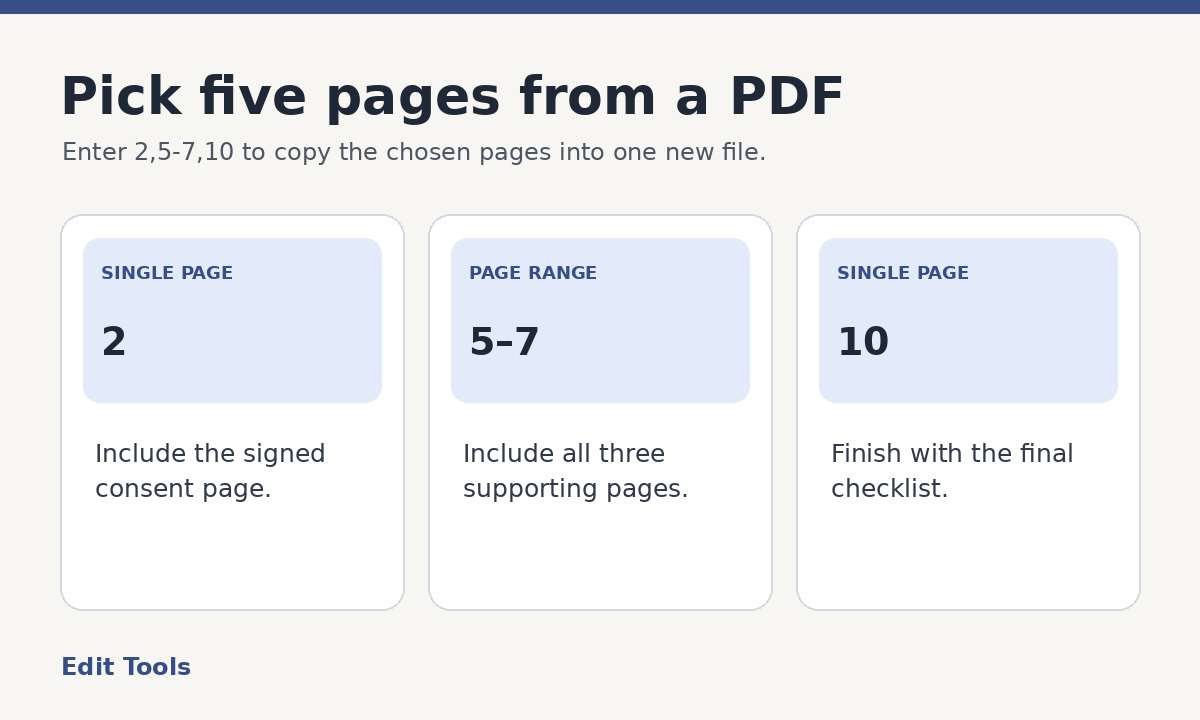
Use Extract pages to copy selected pages into a separate PDF. Enter the page positions as a comma-separated list, with a hyphen for each continuous range. For example, 2,5-7,10 selects page 2, pages 5 through 7, and page 10. Download the new file, then check that it contains the five pages you expected. The source PDF stays on your device as a separate file.
Find the page's actual position
A printed page number can differ from the position a PDF tool uses. A report might have a cover, a contents page and three pages numbered with Roman numerals before the first chapter begins. If the footer says “1” on the sixth page of the PDF, the number you should enter for that page is 6.
Open the original in a viewer and use the thumbnails to count from the first page. Look for the page count or a position such as “6 of 28.” Some readers show custom page labels in the navigation field too, so cross-check the thumbnail position if the display seems inconsistent. When you write down the ranges, record both the source position and a short description of the first and last pages. That gives you a simple way to catch an off-by-one mistake.
A cover sheet is still a page, even if it has no printed number. A scanner's blank reverse side also counts. A photograph or full-page diagram should be counted the same way as a page of text. The extraction tool works with pages as units.
Step 1. Decide exactly what belongs in the new PDF
Consider a 14-page application packet. The recipient wants the signed consent on page 2, the supporting material on pages 5 through 7 and the final checklist on page 10. Your range is 2,5-7,10. The expected total is one single page, a three-page range and one more single page.
A different recipient might need a whole section rather than parts of a packet. If chapter two runs from physical page 12 through 18, enter 12-18. If you only need the invoice from position 9, enter 9. Both ends of a range count, so 12-18 contains seven pages.
Make the selection from the original before you start. If you extract the first half of a file and then select pages from that copy, its pages have new positions. Mixing those positions with your original notes is an easy way to select the wrong pages.
Step 2. Enter your range and download the result
Open Extract pages and choose your PDF. In the pages field, enter the positions or ranges you wrote down. Select the extraction button, then download the result after it appears. Save it under a name that describes the section, such as application-consent-and-supporting-pages.pdf.
Keep the order you want clear. If the assignment requires a specific custom order or a repeated page, use Organize PDF and check the resulting sequence. For a straightforward extract, enter distinct pages in the order they appear in the source. That is easier to audit later.
If the tool rejects the input, check for a mistyped digit, a reversed range, or a position past the end of the file. Paste a plain hyphen between the endpoints. Text copied from a word processor can contain a longer dash that looks similar. Try one known position first when you need to isolate a formatting problem.
Step 3. Verify the pages and the information you are sharing
Open the new PDF before you attach it to a message. Check the page count, read the top of each page and confirm that the last page ends where you intended. If the extract includes a chart that refers to a caption on the next page, consider whether the caption needs to be included as well.
Page extraction is suitable for excluding entire pages. If an included page has information that should be hidden, use a redaction workflow and verify the redacted copy separately. A reader could still see information that remains visible on the copied page. Also check whether links, embedded items, bookmarks or forms are still needed and usable in the result. Internal links can refer to pages you omitted from the source.
If the source has a digital signature, treat the extract as a new copy. It should not be used as proof that the original signature still validates. Keep the signed original available and confirm what the recipient will accept if signature verification matters.
When to use Split PDF or Remove pages instead
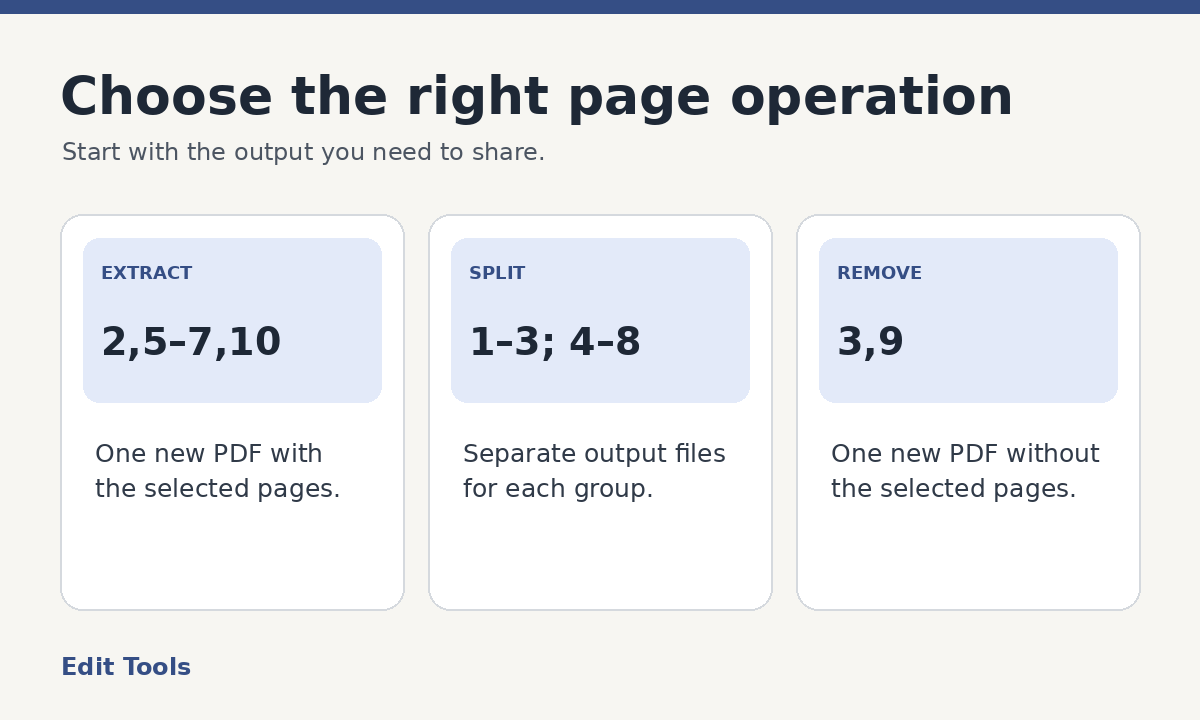
Use Split PDF when you want several output files. The range format for that tool separates each output group with a semicolon. For example, 1-3;4-8 makes one group for positions 1 through 3 and another for positions 4 through 8. Download the files and give each a name that describes its contents.
Use Remove pages when most of the PDF is already correct and you only need to take out a few pages. If you want to keep 40 pages from a 42-page file, entering the two you want to remove is simpler than listing all the pages you want to keep. Download and check the shortened file, especially around the removed positions.
If you only have a PDF viewer and it can print to PDF, you may be able to print a selected range to a new file. That method can work for a visual copy, but print-to-PDF can discard interactive fields, links or other document features. Check the result based on how you plan to use it.
Frequently asked questions
Can I extract pages that are far apart?
Yes. Separate individual positions and ranges with commas. A selection such as 1,8,15-17 combines nonconsecutive pages in one PDF. Confirm that the listed positions are present in the original and check the output order.
Why does the output still show the old page numbers?
Numbers printed inside a page are part of its visible content. Copying a page does not rewrite the footer. Your viewer might report “1 of 5” while the page itself says “17.” That is normal for an extract. If new numbering is required, add it to a separate copy after verifying the extracted pages.
Can I get back to the original?
Yes, as long as you keep it. Download the extract under a distinct name and store it next to the original or in a separate folder. If your selection was off by one or a recipient requests another page later, return to the source and make a new extract.
Further reading: Adobe's guide to extracting pages from a PDF.