How to Compress a PDF Under 2 MB for an Upload
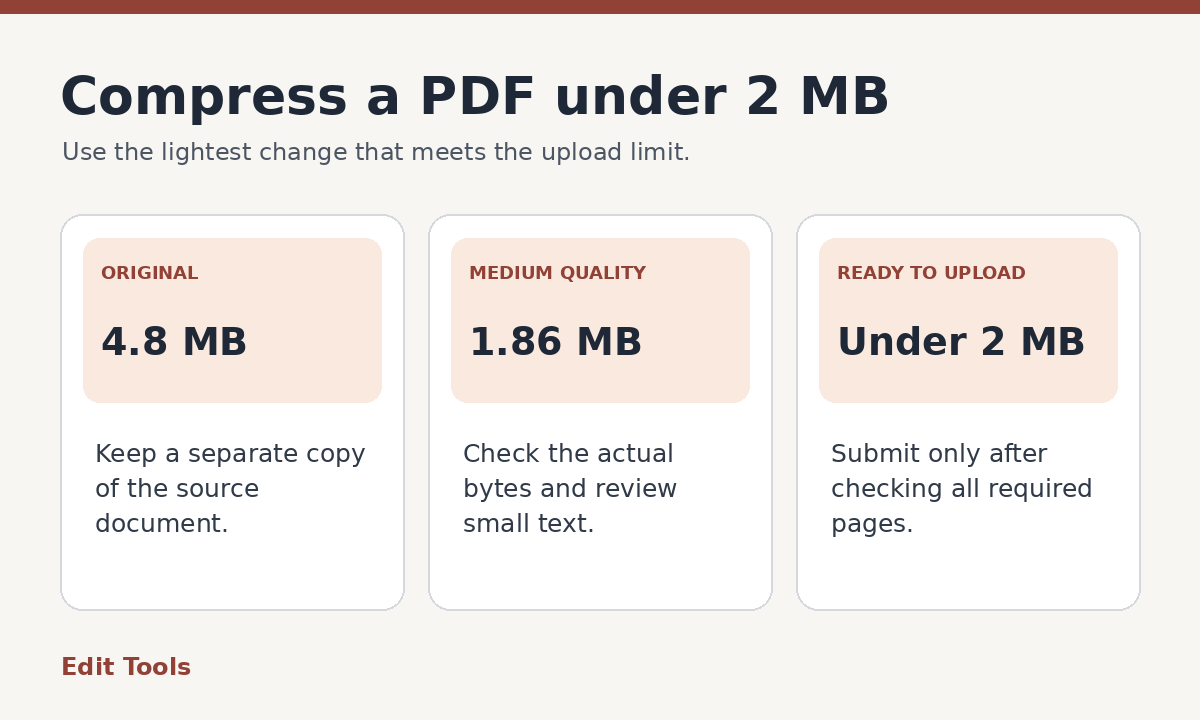
Start with a fresh copy of the original PDF. Remove pages the recipient does not need, then try a structural optimization. If the file is still too large and contains scans or photographs, make a medium-quality compressed copy and check its file size and readability. Use stronger compression only if the first copy misses the limit. For a strict 2 MB upload, a target around 1.8 to 1.9 MB leaves room for differences in how the receiving site calculates and displays size.
Why a short PDF can be too large
Page count is a poor measure of file size. A one-page scan of a color form can take up more storage than a long report exported from a word processor. The scan stores a picture of the entire page, including the paper background and margins. A digitally created report can store letters as text and reuse font information across pages.
Open the biggest-looking pages and zoom in. Large photos, scanned signatures, full-page screenshots and colorful backgrounds often explain where the size comes from. If the file consists mainly of selectable text and simple drawings, there may be little to gain from lowering image quality. In that case, start with structural optimization or regenerate the file from its source.
Check the receiving site before you change anything. A form may have a 2 MB limit per attachment, a total limit across all files, or a restriction on the number of uploads. Those are different problems. Splitting a PDF only helps when the instructions allow multiple attachments.
Step 1. Remove pages that aren't needed
If the portal asks for a certificate and that certificate is buried inside a longer packet, use Extract pages to make a smaller PDF containing only the relevant pages. If your document is complete except for a couple of blank scanner pages, use Remove pages and download the resulting copy.
Confirm what the recipient expects before cutting pages. A blank-looking page can be the reverse side of a signed form, and a cover sheet may contain a reference number the recipient uses to identify the packet. If every page is required, keep the full document and work on its image quality instead.
Save the original under its current name. Give the trimmed file a different name so that you can return to the correct version without guessing which copy is the latest.
Step 2. Try structural optimization first
Open Compress PDF, choose the file and select Optimize document structure. This mode resaves the PDF without deliberately turning each page into a new image. Download the result and inspect its actual file size in your file manager.
The optimized copy can be very close to the original size, especially when the source is already compact. That is useful information. If the size barely changes, repeating the same optimization on the resulting file is unlikely to solve the problem. If it is already below the target, stop there and check that text selection and any other features you rely on still work.
For a PDF that includes a digital signature, keep the signed original. Rewriting a signed PDF can invalidate the signature. If the receiving site requires the signature to remain verifiable, check with the recipient before submitting any processed copy.
Step 3. Make a medium-quality copy for image-heavy PDFs
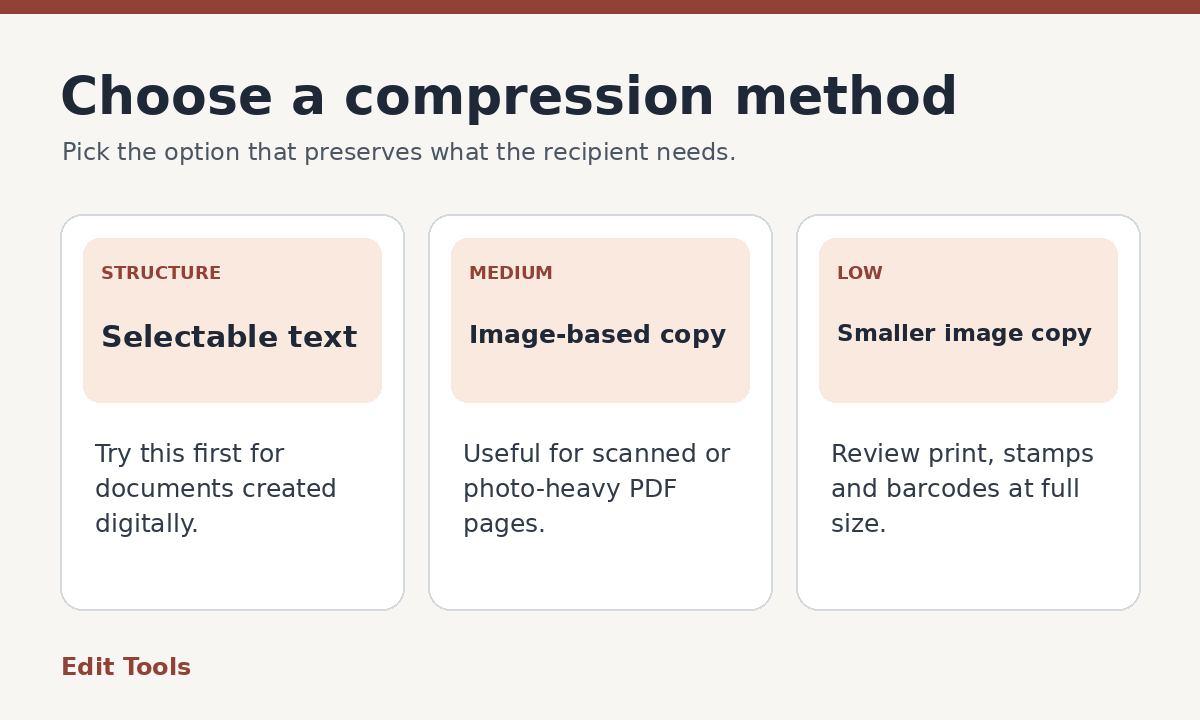
Choose Rasterize at medium quality for a scan or photo-heavy PDF. Rasterization renders each page as an image. It can cut the size substantially, although the new copy loses features such as searchable text and interactive fields. Reserve it for submissions where the visible pages are what the recipient needs.
Download the result and check the size. Use the same viewer and the same zoom level to compare the original and the compressed copy. Pay special attention to small print, account references, timestamps, handwritten additions and any barcode the recipient needs to scan. A page can look fine at full-page zoom while its smallest details have become difficult to read.
If the document is a form that someone still needs to fill in, upload a PDF with working fields if the portal supports a higher limit, or compress the source before adding the fields. A flattened copy is appropriate when the entries are already complete and the instructions accept a static document.
Step 4. Use stronger compression only if you still need it
If the medium-quality version is still larger than the target, go back to the original or trimmed copy and try Rasterize at low quality. Starting with the cleanest source avoids applying a second round of image compression to pages that have already lost detail. Save the new result with a name that makes the compression level clear.
Imagine a three-page scanned application that starts at 4.8 MB. Structural optimization brings it to 4.7 MB. A medium-quality copy lands at 1.86 MB, and the small text stays readable. That copy meets the requirement. A hypothetical low-quality copy of 1.2 MB would create unnecessary loss when the medium version already works. Your file may respond differently, so compare your actual outputs.
If both modes miss the limit, try rescanning the paper with a tighter crop and a document preset. If the information is entirely black text, grayscale may help. Keep color if it distinguishes stamps, annotations or fields. For a PDF created from Word or another editable source, exporting again with smaller images can preserve more functionality than flattening the PDF afterward.
What if the site still rejects the file?
Look at the exact number of bytes if your file manager provides it. A displayed value near 2.0 MB can hide rounding differences. Upload the newly downloaded copy rather than the original with a similar name. Check the portal's instructions for maximum page count, supported file types and password-protected files. A generic upload error can refer to more than file size.
If the recipient allows separate files, use Split PDF to divide the document into meaningful sections. Naming them by content helps the recipient understand what belongs together. If the instructions require a single file, ask the recipient what to do when a readable document cannot be compressed under the cap.
Before submitting, open the final file, count its pages and inspect the hardest page to read. Confirm that the file size is comfortably under the stated limit and that the filename helps the recipient identify it.
Further reading: PDFCommunity's guide to email attachments that are too large.